![Logo Eldo blanc.png]](https://aide.eldo.com/hs-fs/hubfs/Logo%20Eldo%20blanc.png?height=40&name=Logo%20Eldo%20blanc.png)
Why
A password can be compromised: reused on another site, written down somewhere, or obtained through a phishing email. Without a second factor, that password alone is enough to grant full access to your account — and therefore to the leads and information you can view - with the risk of personal data leaks or unauthorized access to the tool.
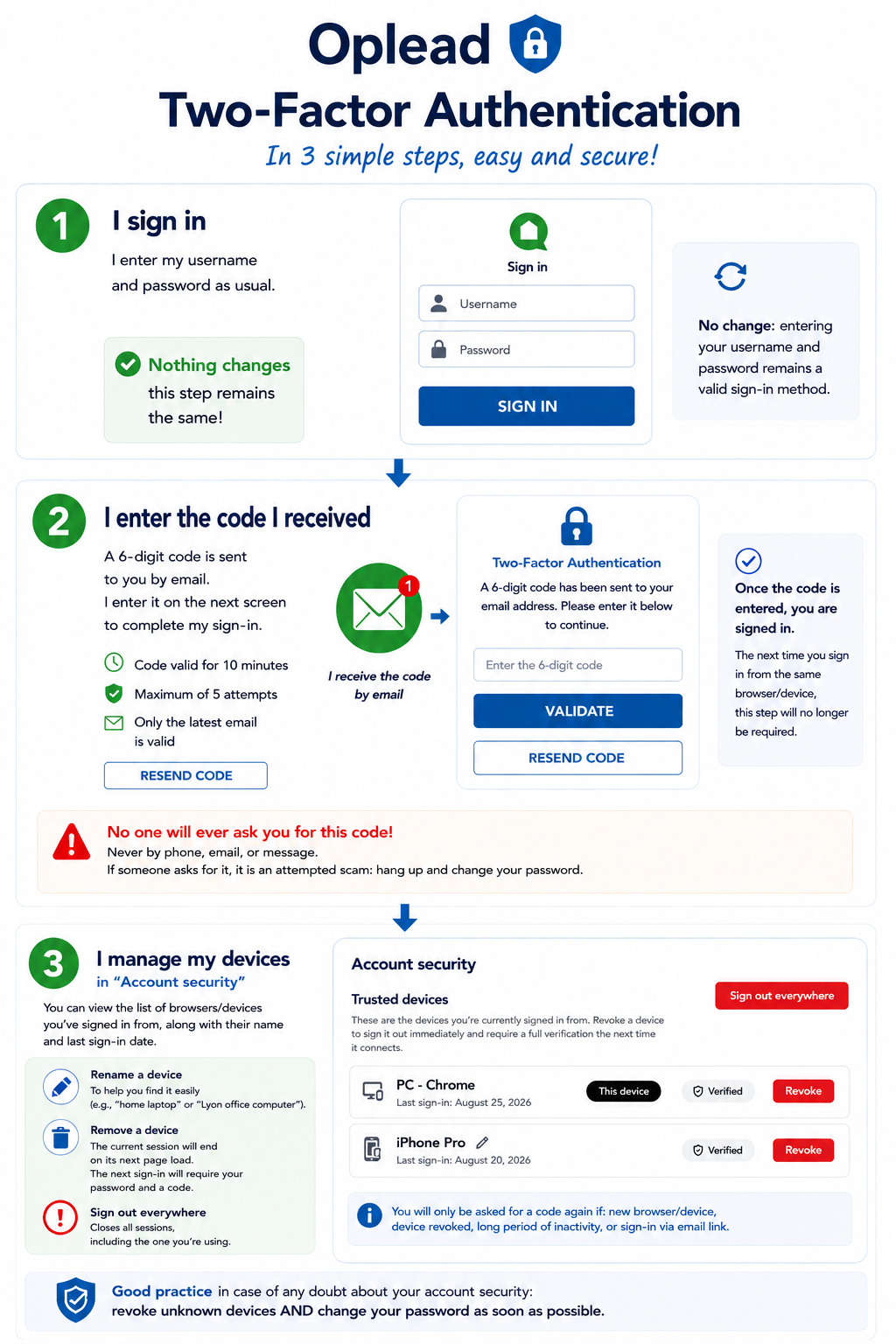
When two-factor authentication is enabled on your account, a six-digit code is sent to your mailbox every time you sign in from an unrecognized browser: even if someone knows your password, they cannot get in without this code, which is randomly generated every time it's sent.
How to turn it on for your account
You can set it up yourself, at any time, from "Account security", accessible from your user account icon. You'll be asked for your password, then a verification code received by email — the same proof as a standard login with two-factor authentication.

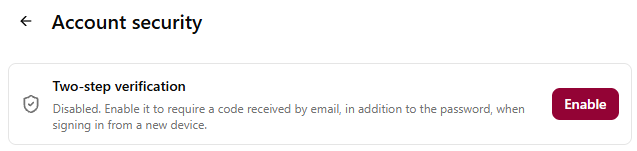
⚠️ For security reasons, all your other already-connected browsers are signed out when you turn on this feature. The one you use to activate it stays signed in: it has just provided proof of both factors.
ℹ️ If you're an administrator and want to enforce two-factor authentication for all your users, contact Eldo customer support. Users who haven't already enabled two-factor authentication on their own account and who are signed in at the time of activation (including you) will be signed out and will need to sign back in with two-factor authentication. Those who had already enabled it themselves are not affected: they keep their already-recognized browsers.
What changes when you sign in
Unchanged: entering your username and password remains a valid way to sign in.
New - for the first sign-in on a browser/device: once your username and password are validated, a code is sent by email and must be entered on the next screen to complete the sign-in.

Once you've entered this code, you're signed in. Next time, if you sign in again from the same browser and device (computer/phone…), you won't be asked for this step again: Oplead recognizes it.
You'll only be asked for the code again in these situations:
- you sign in from a browser you've never used on this account (including a second browser on the same computer, or the mobile app in addition to the web version);
- you removed this browser from the list in "Account security";
- you haven't signed in for a very long time (the device "forgets" you after a period aligned with your session duration, currently several months);
- you signed in via a link received by email rather than by password: this sign-in method doesn't mark the browser as verified, so the next password sign-in will ask for the code again.
The code
- It is valid for 10 minutes.
- You have 5 attempts.
- It's always the last email received that counts: if you request a new code, the previous one stops working.
- If you can't get it to work, click "Resend code": a new email is sent and your attempts reset to zero, without having to re-enter your password.
⚠️ No one will ever ask you for this code, whether by phone, email, or message. If someone asks you for it, it's an impersonation attempt — hang up and change your password.
The "Account security" menu
You can access the management of this feature at any time via "Account security". If two-factor authentication is enabled, you'll find the list of browsers you've signed in from, with their name (for example "Chrome on Windows") and the date of last sign-in. The one you're currently using is labeled "This device".

By clicking on a device's name, you can rename it (for example "home laptop", "Lyon office workstation") to help you find your way around the list.
You can remove one. This is useful when you don't recognize it, or no longer have access to it. Two effects:
- the session still open on that browser ends the next time it loads a page (near-instant);
- its next sign-in will ask for the password and a code again.
"Sign out everywhere" closes all your sessions at once, including the one you're using. This is the right move if you have any general doubt.
⚠️ If you revoke devices out of concern for your account's security, also change your password as soon as possible: revoking access does not invalidate a password that may have leaked, but it makes intrusion impossible without access to your mailbox.
The alert email
When a sign-in happens from a browser you've never used on this account, you receive an email titled "Security alert: new sign-in to your account", showing the date and the browser name.
- If it was you, there's nothing to do: this browser is now recognized, and you won't get another alert for it.
- If it wasn't you, someone may know your password. Open "Account security", remove the browser you don't recognize, then change your password.
FAQ
I'm not receiving the code — what should I do? Check your spam folder. The code is sent to the email address registered on your account: if it's no longer the right one, contact your administrator. You can also click "Resend code".
My code no longer works — what should I do? It has probably expired, or you're using the one from a previous email. Request a new one and use the last one received.
I lost my computer or phone — what should I do? From another device, sign in and open "Account security". Remove the one you lost: its session ends the next time it loads a page. If in doubt, use "Sign out everywhere", then change your password.
I was just signed out without doing anything. This happens in two cases: you removed this browser from another one of your sign-ins, or your administrator enabled two-factor authentication for all users. Sign back in: you'll be asked for a code. If you can't explain what happened, change your password as a precaution and let your administrator know.
Someone is asking me for my code over the phone — what should I do? Don't give it to them: someone is trying to access your account. No one is supposed to ask you for a sign-in code. If they managed to ask you for it, it means they already have your password — hang up and change it immediately.
My account has been compromised (leaked password, infected computer, hacked mailbox) — what should I do? Notify your administrator immediately, or contact support. Once notified, support can cut off current access: all open sessions and all remembered browsers are invalidated immediately, and you'll need to reset your password to sign in again. Two-factor authentication will then automatically be active on your account. This response applies regardless of your account's current state (two-factor authentication already enabled or not).
A special case: if your mailbox is compromised, notifying support still cuts off Oplead access, but regaining safe access first requires securing the mailbox itself - both the code and the password reset land there.